
This article describes how to configure different versions of MS Outlook for AEES mailbox, including step-by-step instructions for setting up a new account, entering server details, and troubleshooting common issues with Autodiscover and email provider selection.
The New Outlook for Mac
MS Outlook 2021/2024 for Mac
The New Outlook for Mac
Important: If you encounter an unsupported feature, you can switch back to Legacy Outlook by navigating to Outlook Menu Bar > Help > Revert to Legacy Outlook.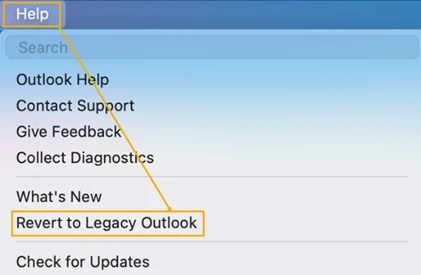
MS Outlook 2021/2024 for Mac
Open Outlook for Mac and click on the Outlook menu.
Choose Settings from the dropdown menu.
Under the Personal Settings section, click on Accounts.
Click the plus (+) button and select Add an account.
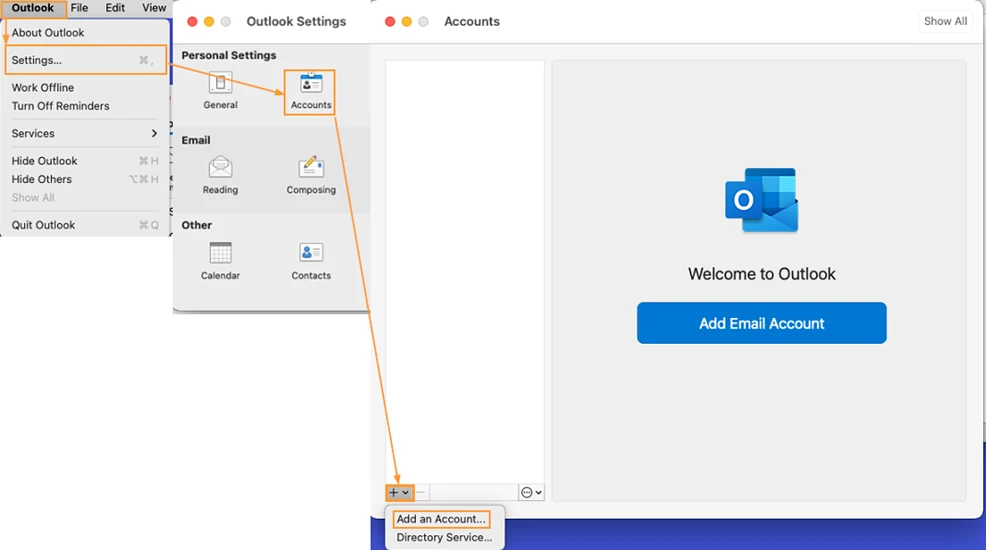
Enter your email address and click Continue. In case server settings were not found automatically, Outlook will ask about email provider. Continue following steps below.
In case server settings were not found automatically
In case server settings were not found automatically, Outlook will ask about email provider. Select Exchange.
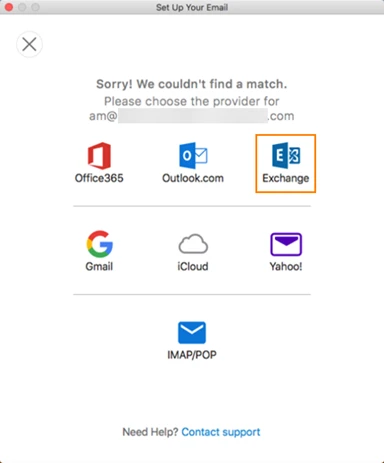
In the new window, fill in the following fields:
Method: select Username and Password.
E-mail address: enter your email address.
Username: enter your email address.
Password: enter your email password.
Server: https://west.exch###check-with-support###.serverdata.net/EWS/Exchange.asmx
Note: If you don't know this part ###check-with-support###, please contact support@vdomainhost.com.sg to check.
(only fill in the server manually if there is a bug with the Autodiscover function in the Outlook)
