
Important Step:
First, make sure the Outlook App is closed.
Then click here to download and run this OutlookFix.zip
Note: Before adding an email account to your computer. Microsoft needs you to run a manual installation of the following software updates:
Windows Updates
Optional / Performance Window Updates
MS Office Updates
Important Note: It is very important to restart the computer after installing any Windows Updates or Office Updates
After you have done the above manual Updates & Restarted the computer, then continue with the following.
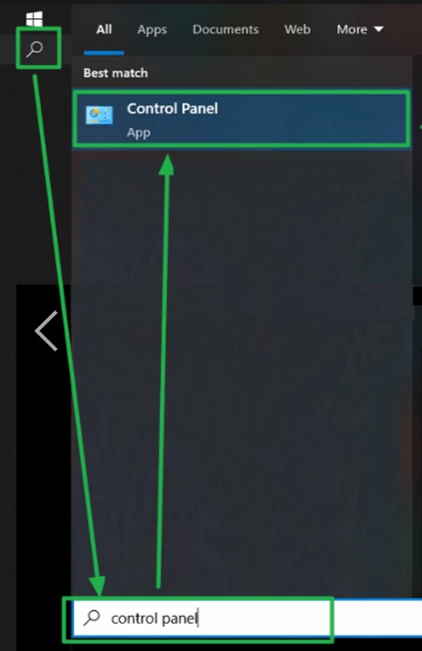
Windows Desktop Search box > type 'control panel' > click the result that says 'control panel'
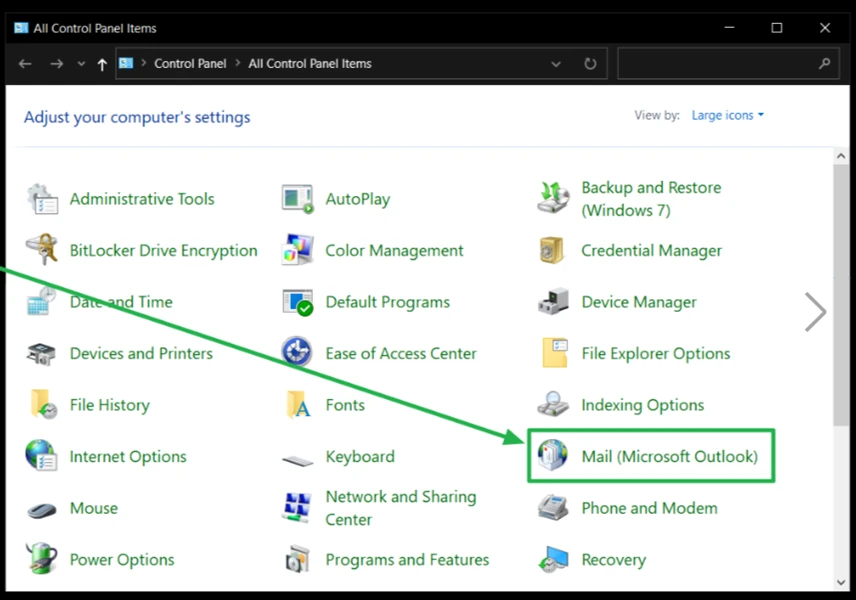
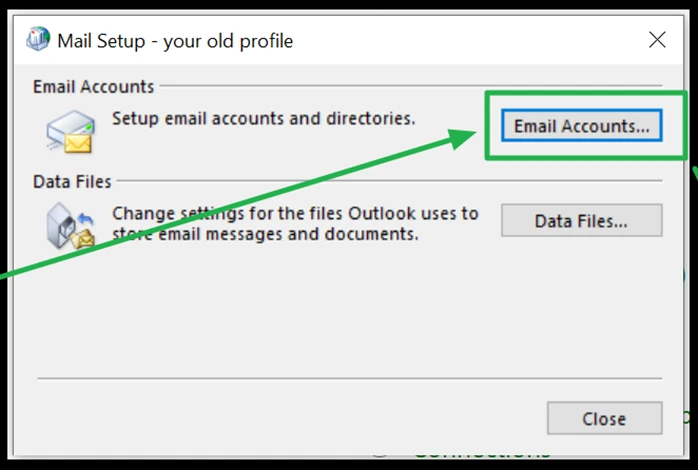
The Control Panel window will open > click Mail
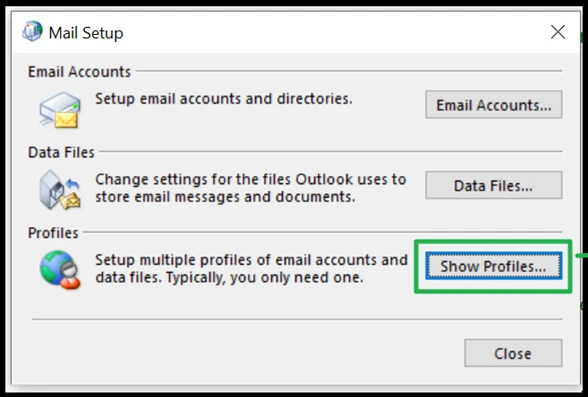
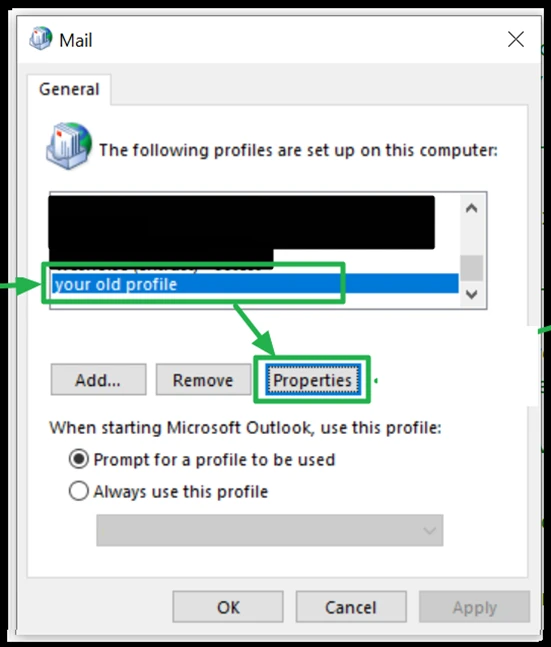
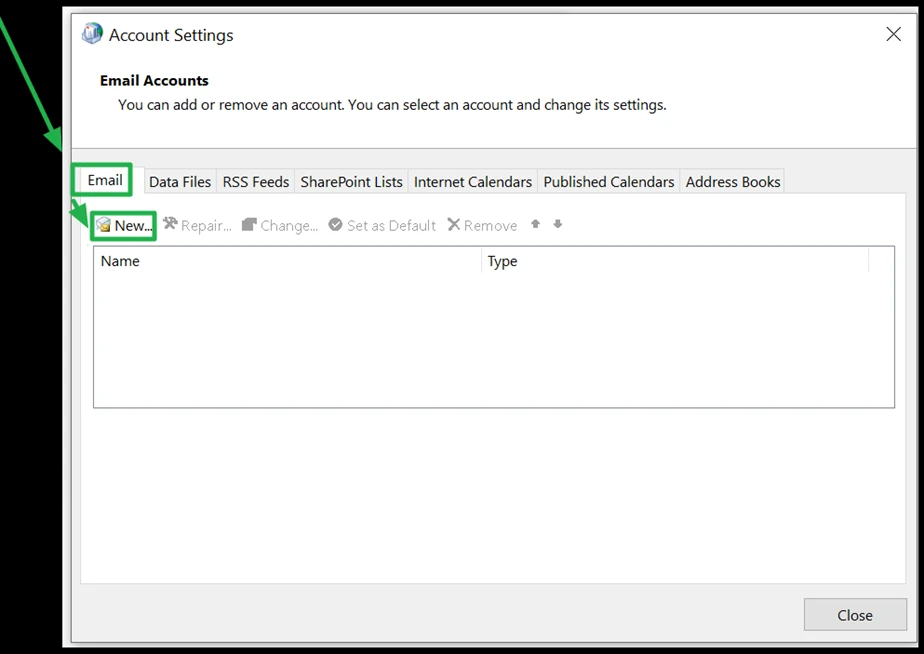
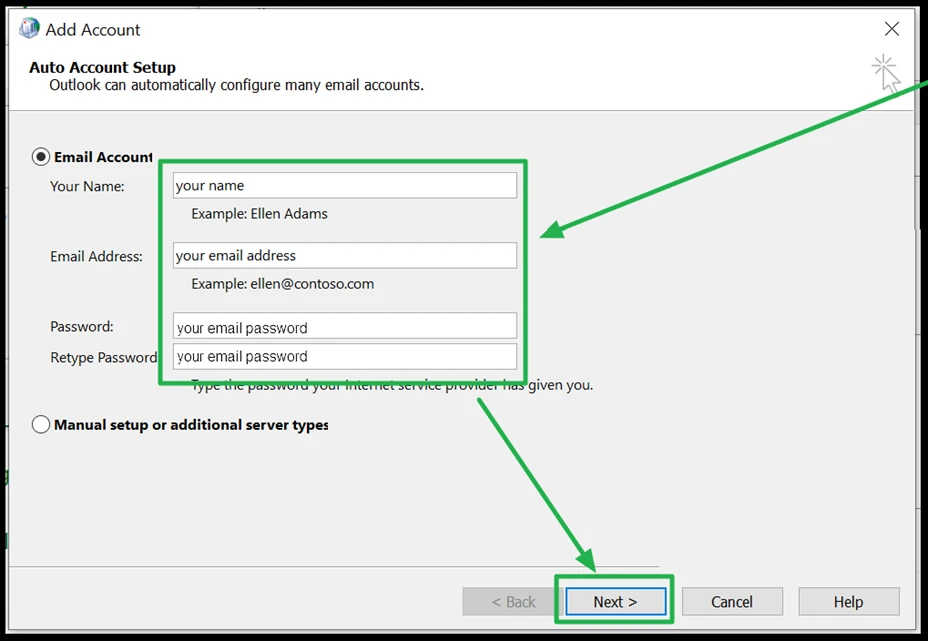
When the Mail Setup box opens, follow the screen guide below.
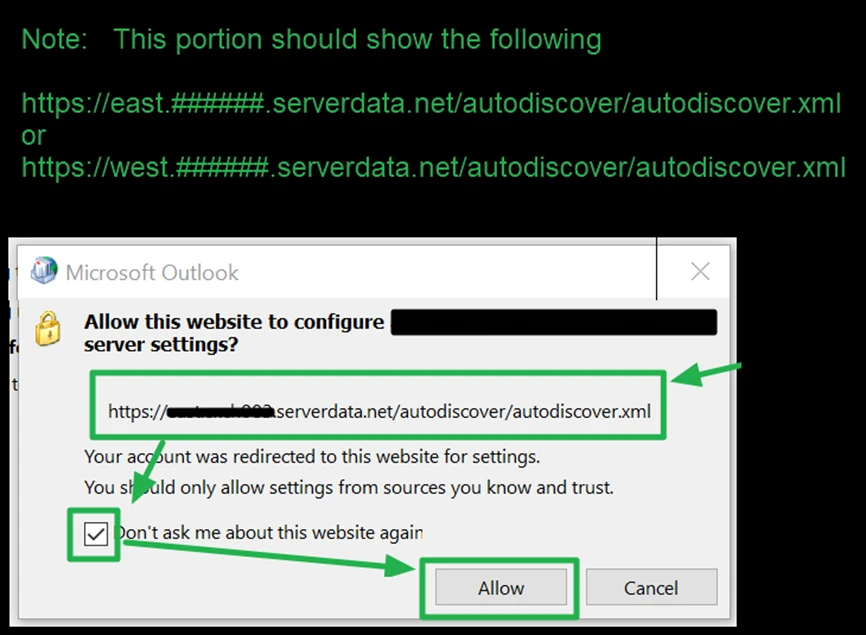
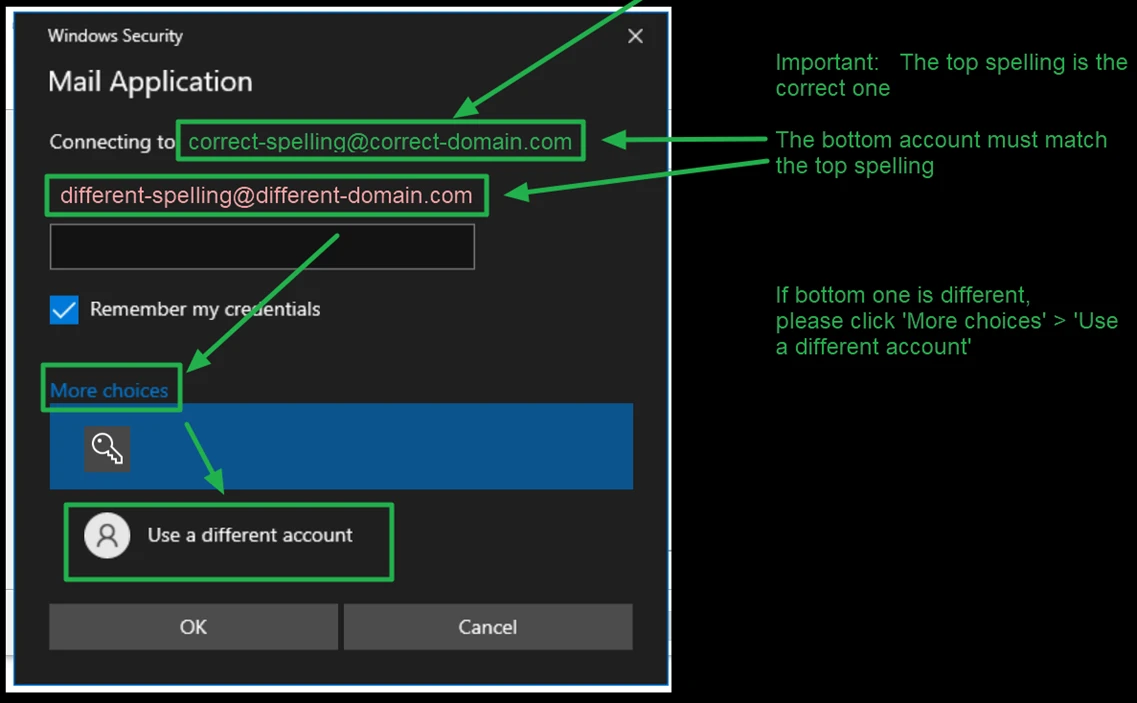
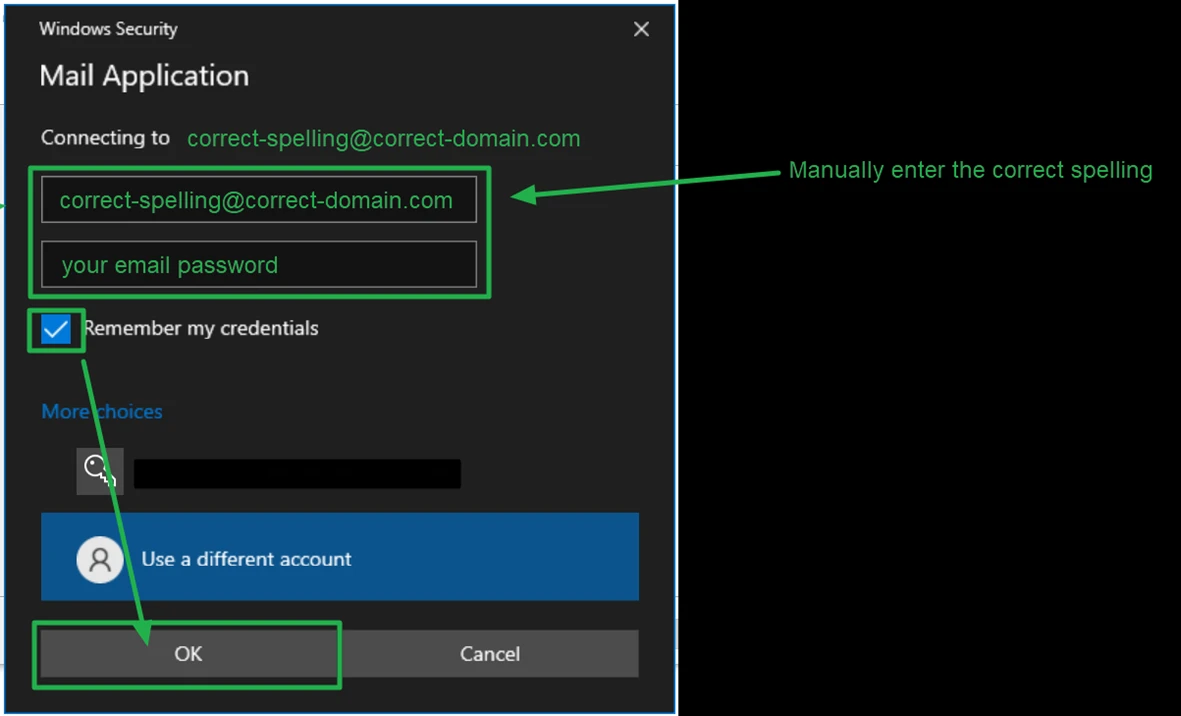
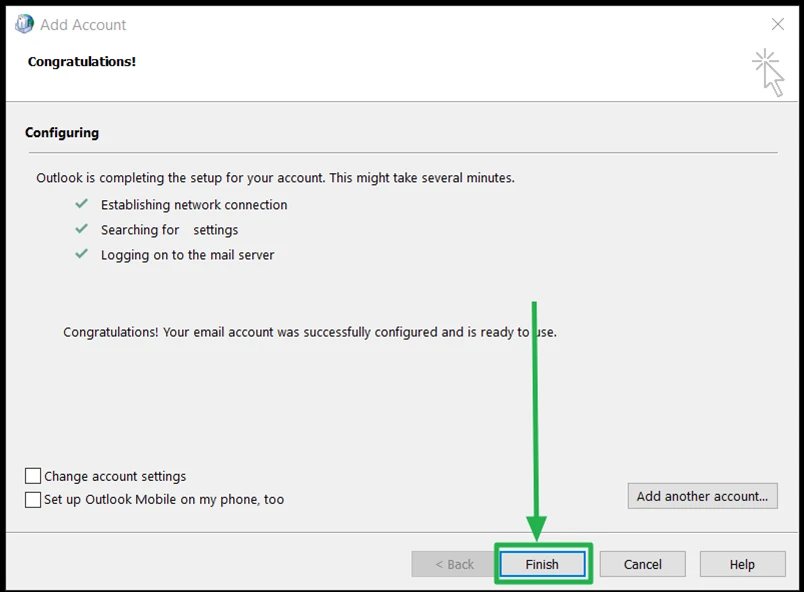
Note: Some popup boxes may appear during setup
If the popup prompts for password, double-check the address spelling in the popup box matches the one you are adding. Then enter the email password above.
If the popup prompts to allow a security certificate for ###.serverdata.net , click 'allow'.
