
If Outlook takes a long time to open, show messages, or switch folders, use this guide to work out whether the problem appears limited to the desktop app or also affects the mailbox in a browser. Try the low-risk checks first. You do not need to delete email, change security settings, or remove your current Outlook profile to perform the recommended tests.
Important: Do not delete an Outlook profile, Outlook data file, mailbox folder, or email to try to speed things up. Some accounts—especially older POP accounts—may have mail stored only on the computer. Ask your IT support team before making changes that could affect saved email.
Before you begin
Write down the affected person's name, email address, computer name (if known), when the slowness started, and what is slow: opening Outlook, opening messages, searching, or switching folders. Note whether other people are affected. If only one person's Outlook desktop is slow, while their webmail works normally, that points toward a problem on that computer or in its Outlook setup. It is a useful clue, not proof of the cause.
Step 1: Check the email in your organisation's webmail
This test compares the mailbox in a browser with Outlook on the computer. Use the webmail address your organisation normally provides. Microsoft says organisational Outlook webmail is accessed using the URL supplied by the organisation's email administrator. Do not follow a webmail sign-in link from an unexpected email. [5]
1. Open a web browser and go to your organisation's known webmail address or saved bookmark.
2. Sign in using your normal work account and multi-factor approval, if requested. Never send your password or approval code to the helpdesk.
3. Open the same mailbox, message, or folder that was slow in Outlook.
4. Note whether it is also slow in the browser.
If webmail is quick but Outlook is slow, continue with the Outlook checks below. If webmail is also slow, tell the helpdesk; the cause may involve the mailbox, internet connection, or email service rather than just the Outlook desktop app. If more than one person is affected, report that too.
Step 2: Check for Office updates
Microsoft recommends installing applicable Office updates when troubleshooting Outlook performance. In classic Outlook, you can check for them from the Office Account screen. [1] [3]
1. In Outlook, select File.
2. Select Office Account or Account.
3. Under Product Information, select Update Options > Update Now.
4. Let the update finish, close any update message, and restart Outlook.
If you do not see Update Options, or the update is blocked, do not change company update settings. Your organisation may manage updates centrally; contact the helpdesk. [3]
Step 3: Test a separate Outlook profile with one email account
An Outlook profile is the set of account and mail settings Outlook uses. Microsoft recommends creating a new profile when troubleshooting problems that may be caused by a misconfigured profile. Creating a separate test profile lets you compare Outlook without deleting the existing one. [1] [2]
This step is for classic Outlook for Windows. If your app says Outlook (new), or you cannot find the steps below, stop and ask IT for the version-specific instructions. Do not remove your current profile. If you use a POP account or have email archives saved only on this computer, ask IT before adding that account to a new profile. [4]
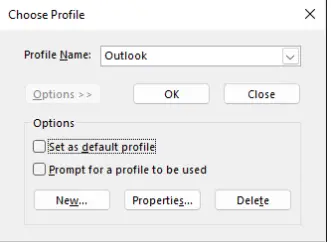
1. Close Outlook. Hold down Shift on your keyboard while opening Outlook. Keep holding Shift until the Choose Profile window appears. Microsoft also documents other ways to open the profile picker. [2]
2. In Choose Profile, select Options if the extra choices are hidden.
3. Select Prompt for a profile to be used. This gives you a choice when Outlook starts, so you can return to the original profile.
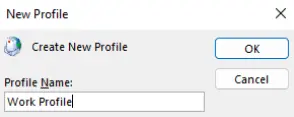
4. Select New, enter a clear name such as Test – Alex, and select OK.
5. When asked, add only the affected email account. Do not add the other work accounts during this test.
6. Complete any sign-in or multi-factor prompts. Allow Outlook to finish its first download or sync before deciding whether it is faster. A new profile may need to download mailbox information for its first use.
7. Open the same mailbox, folder, and message you tested in Step 1. Note whether Outlook now opens and loads messages normally.
What the result means: If the test profile is noticeably faster after its initial sync, the original profile or its collection of account settings may be involved. Keep the old profile in place and tell IT the test result; they can decide whether to move to the new profile. If the test profile is still slow, continue to Step 4.
Screenshot 1. Microsoft's example of the Outlook profile picker. Select New to make a separate test profile; do not select Delete.
Screenshot 2. Microsoft's example of the New Profile window. Use a clear test name so you can identify it later.
Screenshots reproduced from Microsoft's profile-creation instructions. The wording and appearance can differ slightly between Office versions. [2]
Step 4: Check whether several accounts are adding to the load
Outlook can be configured with several email accounts. Having four or five accounts in one profile is not, by itself, proof of a fault or a guaranteed cause of slowness. However, accounts may each add mail to check, folders to display, and local information to keep in sync. A test profile with only the affected account helps show whether the combined setup is contributing. Microsoft's documentation describes Outlook storing or syncing local data for different account types, and its performance guidance identifies large data files and folders with many items as possible contributors. [1] [4]
For troubleshooting, keep only the affected account in the test profile from Step 3. If the test is faster, tell IT how many accounts are in the original profile and which account or accounts are slow. Ask IT whether less frequently used mailboxes should be opened in their approved webmail instead. Community discussions mention this as a practical option for additional mailboxes, but those reports are user experiences—not a Microsoft rule. [7]
Do not create multiple permanent profiles, remove accounts, or change shared calendar/mailbox access without approval. Separate profiles can mean more switching and may change how calendars or other accounts appear. Let IT recommend the long-term arrangement.
Step 5: Tell IT about large mailboxes or crowded folders
Large Outlook mailboxes and local Outlook data files can take longer to open and search. Microsoft also notes that folders containing a very large number of items can make some Outlook operations slower. It specifically warns that, in classic Outlook 2010 and later, views other than sorting by date may be slower when a single folder has more than 100,000 items. This is not a target to wait for: report large folders or mailboxes to IT before performance becomes severe. [1] [4]
If you know that the Inbox, Sent Items, or another folder contains years of email or many thousands of messages, tell the helpdesk. Do not delete, archive, move, or reorganise mail as a speed fix unless your organisation has approved the change. Retention, legal-hold, and business-record rules may apply. Do not look for or delete .pst or .ost files in Windows; ask IT to assess them. Microsoft notes that POP account information, including messages, contacts, and calendar items, may be stored in a .pst file on the computer. [4]
Step 6: Ask IT to assess antivirus interaction—do not turn protection off yourself
Microsoft warns that antivirus software that integrates with Outlook can affect performance. Microsoft also warns that disabling antivirus protection can make a computer or network more vulnerable. [1]
Staff and managers should not disable the antivirus or endpoint-protection program. Ask IT to check whether a specific Outlook email-scanning add-in is involved. Only IT should conduct a brief, approved test using the security vendor's instructions. If a narrow test is not possible, skip it. Any temporary setting must be restored immediately after the test. Keep real-time device protection enabled.
Microsoft Q&A and Reddit discussions also report slow Outlook startup and problems around large mailboxes or multiple accounts. These are useful clues, not guaranteed fixes; follow your organisation's IT instructions and Microsoft's official guidance rather than copying risky forum suggestions. [6] [7]
Step 7: Report the result to the helpdesk
Send the helpdesk a short summary with:
1. The person's name, affected email address, computer, and when the issue began.
2. What is slow: startup, opening email, search, or switching folders.
3. Whether the same mailbox is slow in webmail, and whether colleagues are affected.
4. Whether Office updates completed.
5. Whether a new profile with only the affected account was faster after the first sync.
6. Any known large mailbox or crowded folder, and whether IT reviewed antivirus integration.
Attach a screenshot only if your organisation permits it. Hide message contents, customer names, and other sensitive information first. Never include passwords, one-time codes, or confidential email content in a support ticket.
Common questions
Will making a new profile delete my old profile? No. The steps above create a separate profile and leave the old one available. Do not choose Delete or remove the old profile while testing. [2]
Should every person use one Outlook profile per email account? Not automatically. Use one account in the temporary test profile to isolate the cause. The best permanent setup depends on the mail accounts and how they are used. Microsoft allows additional non-Exchange accounts in a profile, and community reports show that some users prefer webmail for mailboxes they do not use often. This is a decision for your IT team. [2] [7]
Can I delete old mail or folders to make Outlook faster? Do not do so without approval. Large mailboxes or heavily populated folders can be related to performance, but deleting mail may conflict with retention or recordkeeping rules. Ask IT to review the mailbox and agree on a safe cleanup plan. [1] [4]
Should I disable antivirus to test Outlook? No. Ask IT to investigate Outlook's antivirus integration. Do not turn off real-time protection yourself. [1]
What if I use the newer Outlook app? Stop before the profile steps. This guide's profile instructions are for classic Outlook for Windows; ask IT for the matching instructions for your app. [2]
References
[1] How to troubleshoot performance issues in Outlook
[2] Create a profile in classic Outlook for Windows
[3] How to update Microsoft 365 or Office for Windows
[4] Reduce the size of your mailbox and Outlook Data Files
[6] Microsoft Q&A: my Outlook is working very slow
[7] Reddit: Improve Outlook performance with multiple accounts opened on a single profile
